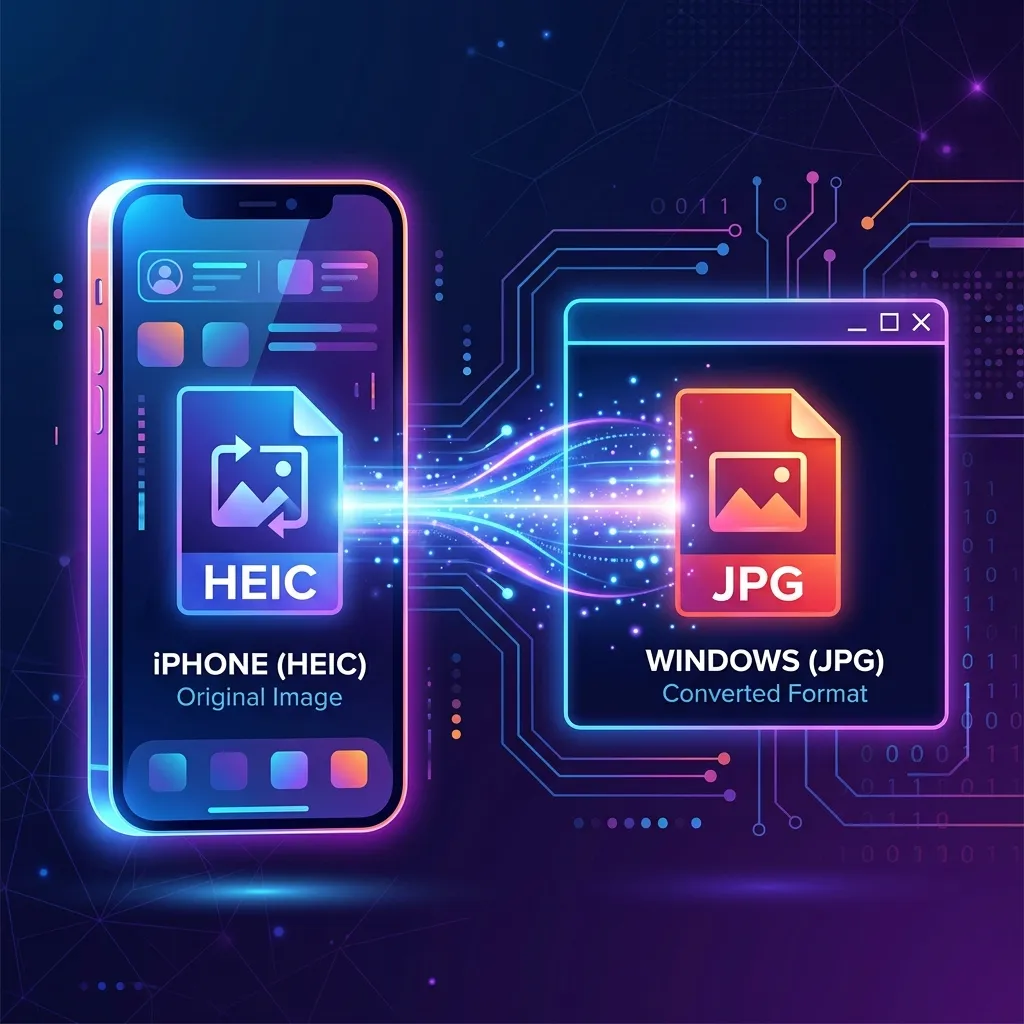
If you have an iPhone, you're likely familiar with .HEIC (High Efficiency Image Container) files. They are great for saving storage on your phone, but they can be a nightmare to open on a Windows PC.
Most default Windows image viewers still struggle with them, and converting them usually requires uploading your personal photos to a cloud converter. That's a privacy risk.
That's why we built the iPhone Photo Fixer—a free tool that converts HEIC to JPG or PNG directly in your browser. No uploads, no waiting, just instant conversion.
Why Use iPhone Photo Fixer?
Unlike other websites, our tool runs 100% offline after it loads. This means:
- Total Privacy: Your photos never leave your device. They are processed locally.
- Speed: No need to wait for uploads or downloads for each file.
- Bulk Conversion: Convert hundreds of photos at once.
How to Convert HEIC to JPG
- Open the Tool: Go to the iPhone Photo Fixer.
- Add Files: Drag and drop your .HEIC files into the box. You can select multiple files at once.
- Choose Format: Select either JPG (best for photos) or PNG (lossless quality).
- Click Convert: The tool will process your images one by one.
- Download: Click Download All to get a ZIP file containing all your converted images.
Who Is This Tool For?
- Real Estate Agents: Quickly convert property photos taken on iPhone for listings.
- Windows Users: View iPhone photos without installing paid extensions.
- Privacy Conscious Users: Convert personal family photos without sharing them with a server.
Stop struggling with incompatible files. Try the iPhone Photo Fixer now and get your photos ready for use anywhere.